Creating Accessible QR Codes: A Guide to Inclusive Design
Make your QR codes accessible to everyone. Learn about color contrast, sizing, alternative access methods, and designing for users with disabilities.

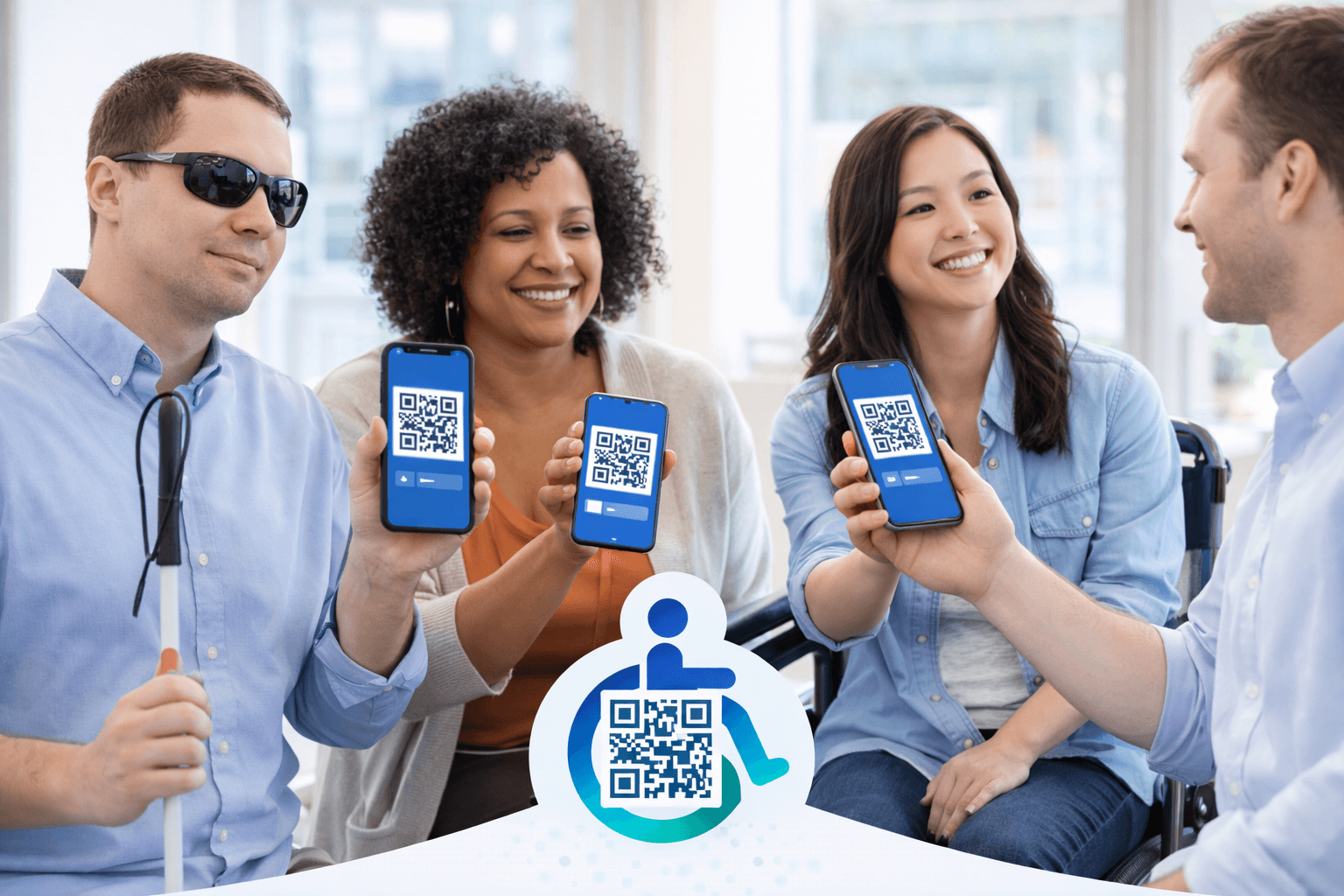
QR codes are convenient—unless you can't use them. People with visual impairments, motor disabilities, older adults, and those without smartphones face barriers when QR codes are the only access method.
Accessible design isn't just ethical—it's good business. Approximately 15% of the world's population has some form of disability. This guide covers how to make your QR codes work for everyone.
Understanding Accessibility Barriers
Multiple conditions can affect QR code usability:
Visual impairments: - Color blindness affects ~8% of men and 0.5% of women - Low vision makes small codes hard to see - Blindness prevents visual scanning entirely
Motor impairments: - Difficulty holding phone steady for scanning - Challenges positioning at correct angle/distance - Limited fine motor control
Cognitive considerations: - Unfamiliarity with QR code concept - Difficulty following multi-step processes - Technology anxiety
Situational barriers: - No smartphone or data plan - Dead battery or broken screen - Glare or poor lighting conditions - Hands occupied (packages, children, etc.)
The goal of accessible design is removing or reducing these barriers.
Color and Contrast
Color choices significantly impact scannability and accessibility:
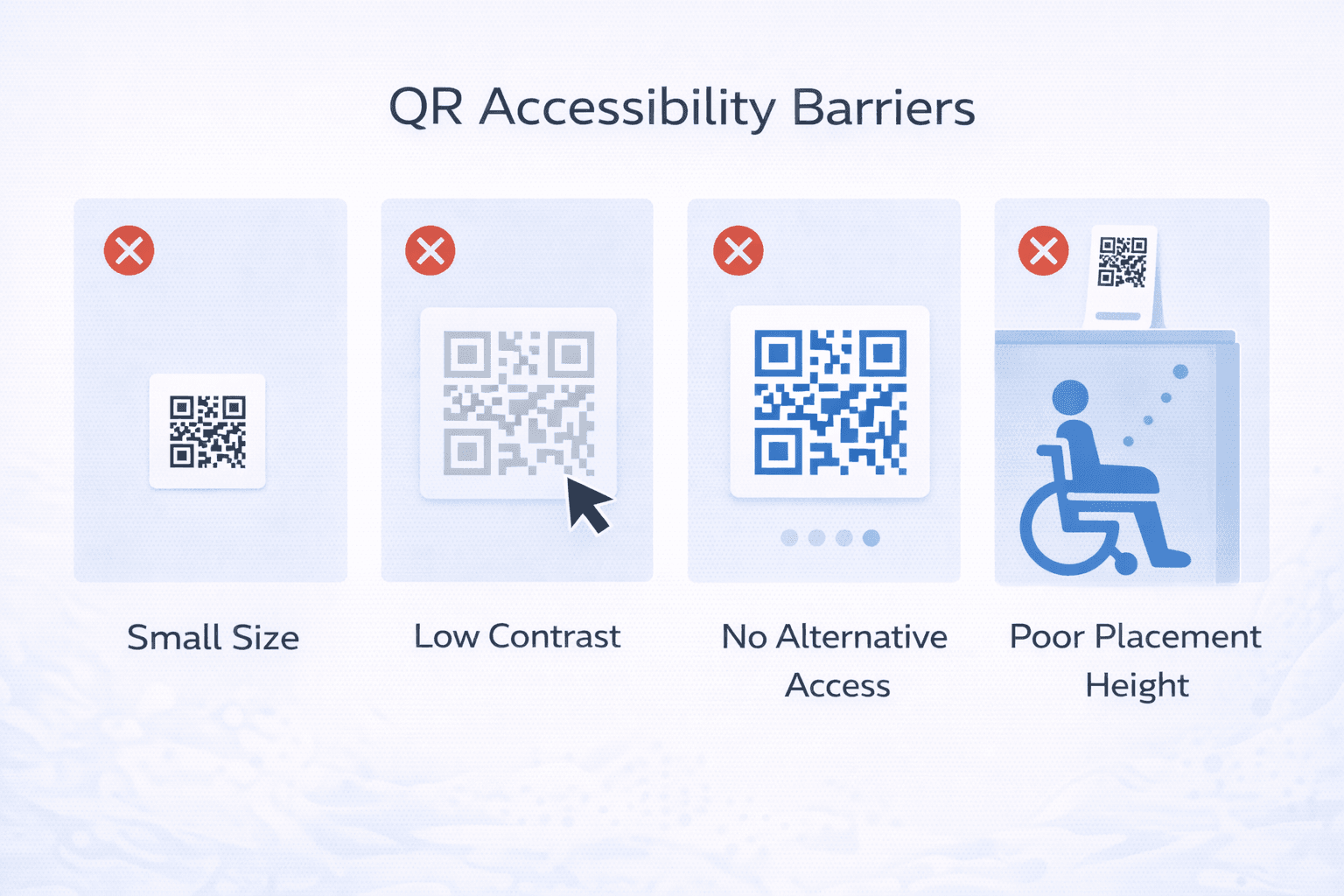
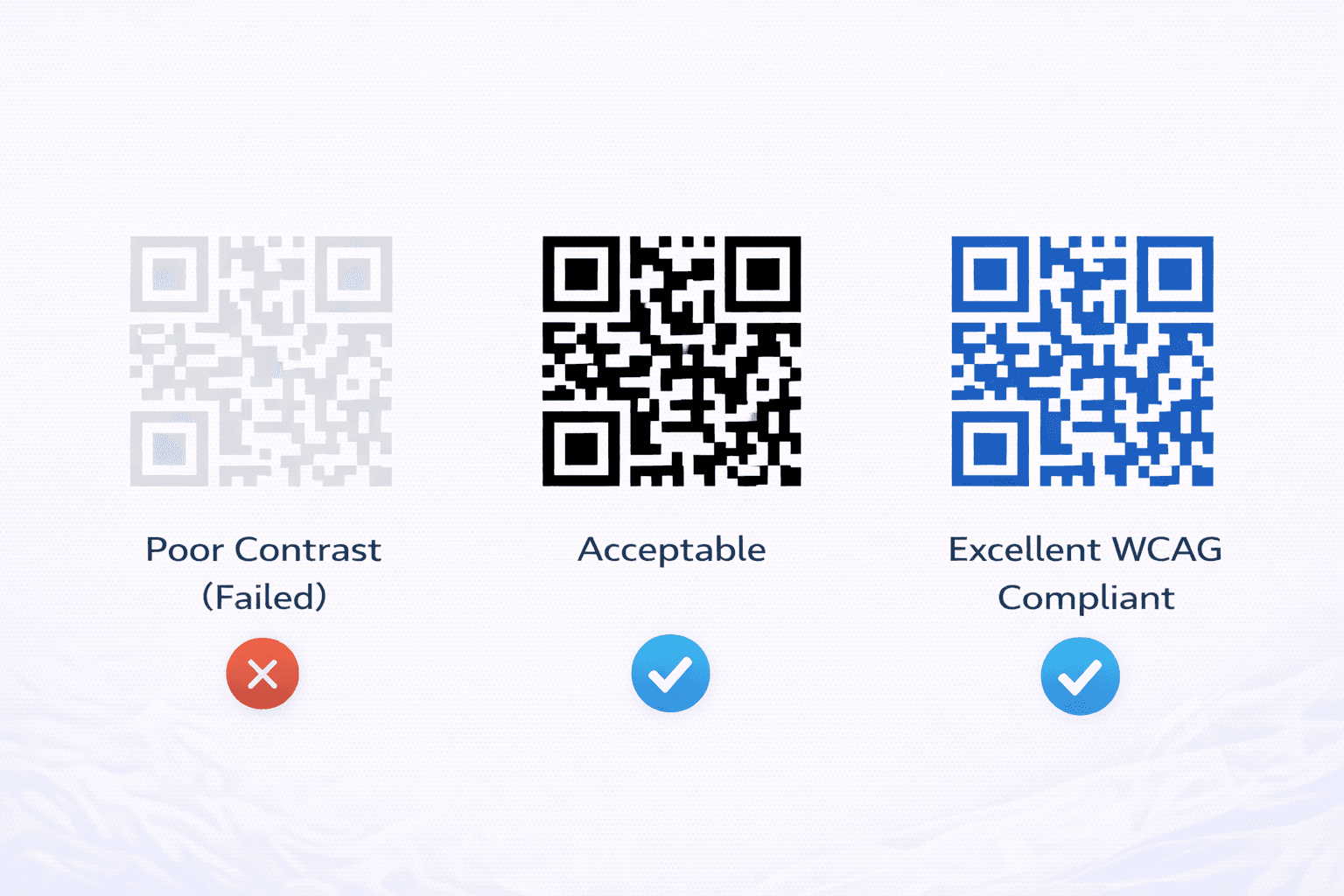
Contrast requirements: - WCAG 2.1 recommends 4.5:1 contrast ratio for text - QR codes should meet or exceed this standard - Dark foreground on light background is universally best - Black on white is the safest choice
Color blindness considerations: - Avoid red/green combinations (most common color blindness) - Never rely on color alone to convey information - Test designs with color blindness simulators - When in doubt, use black and white
Testing tools: - WebAIM Contrast Checker - Color Oracle (color blindness simulator) - Browser developer tools accessibility panels
Safe color combinations: - Black on white (highest contrast) - Dark blue on light gray - Dark purple on light yellow - Avoid: Red on green, light colors on light backgrounds
Pro Tip
When branding demands specific colors, prioritize dark-on-light orientation and test with multiple users including those with color blindness.
Size and Placement
Physical characteristics affect usability:
Sizing for accessibility: - Larger codes are easier for everyone - Minimum 4cm x 4cm for low-vision accessibility - Consider viewing distance and adjust accordingly - Include generous quiet zone margins
Placement considerations: - Mount at accessible heights (wheelchair users) - Avoid glare-prone surfaces - Ensure adequate lighting - Position for stable phone holding
Physical accessibility: - Mount at 48-52 inches from floor (ADA recommendation for controls) - Ensure approach clearance for mobility devices - Avoid placement requiring reaching over obstacles - Consider seated and standing users
Signage best practices: - High contrast between code and surrounding design - Clear call-to-action text - Instructions in accessible font sizes - Visible from reasonable distances
- Use minimum 4cm size for accessibility
- Mount at wheelchair-accessible heights
- Ensure adequate lighting at QR locations
- Avoid reflective or glare-prone surfaces
- Include clear text instructions
- Test placement with users of varying abilities
Providing Alternative Access
QR codes should never be the only option:
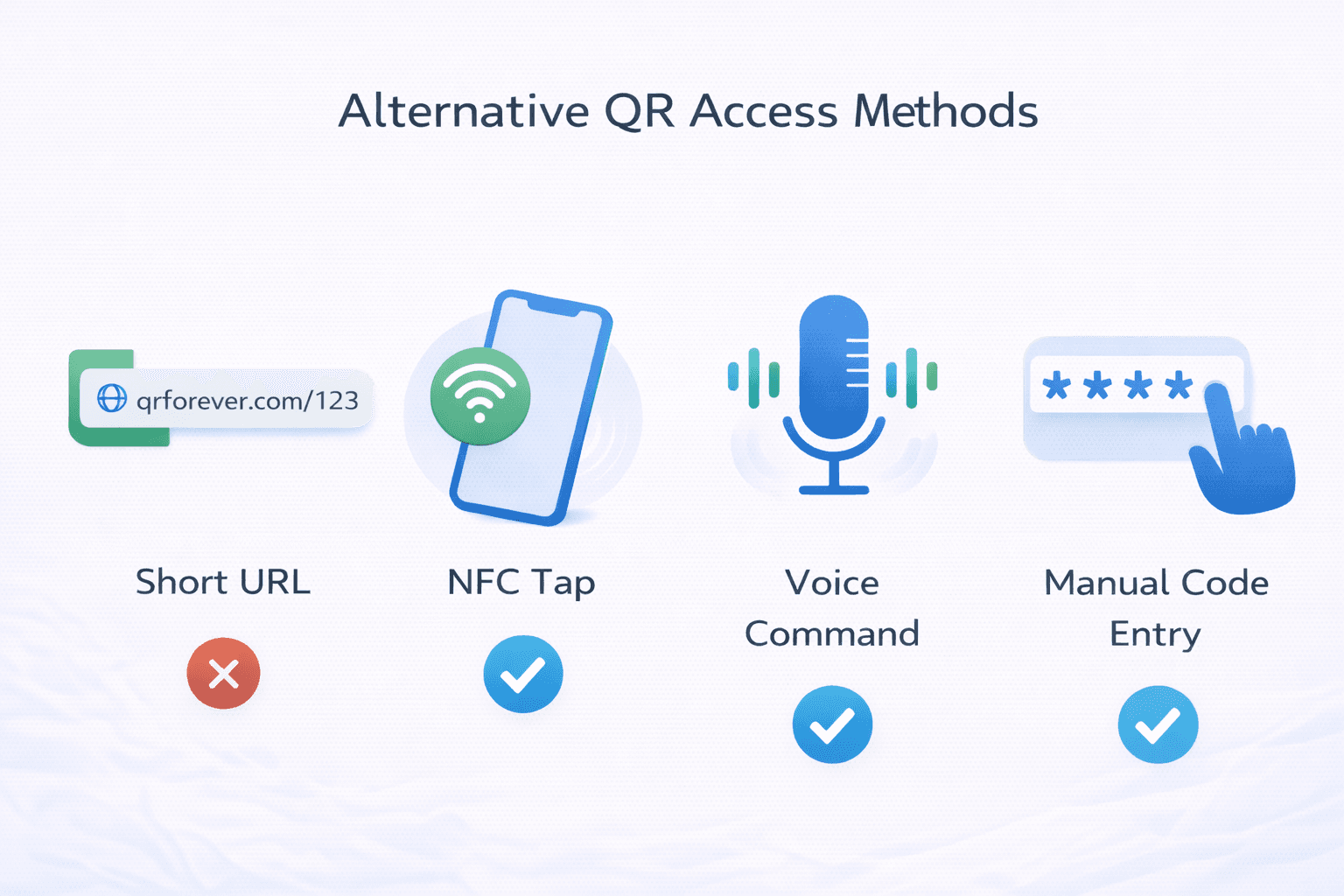
URL alternatives: - Display short URL alongside QR code - Use memorable, typed-friendly URLs - Consider URL shorteners for complex destinations - Ensure URLs are accessible via screen readers
Text alternatives: - Provide phone number for voice access - Include key information in print nearby - Offer staff assistance options - Consider SMS text-to-access systems
Multi-modal approaches: - QR code + NFC tag (for tap-to-access) - Audio descriptions via Bluetooth beacon - Braille signage with tactile elements - Staff training for assisted access
Example accessible signage: "Scan QR code for menu OR visit menu.restaurant.com OR ask staff for printed menu"
Landing Page Accessibility
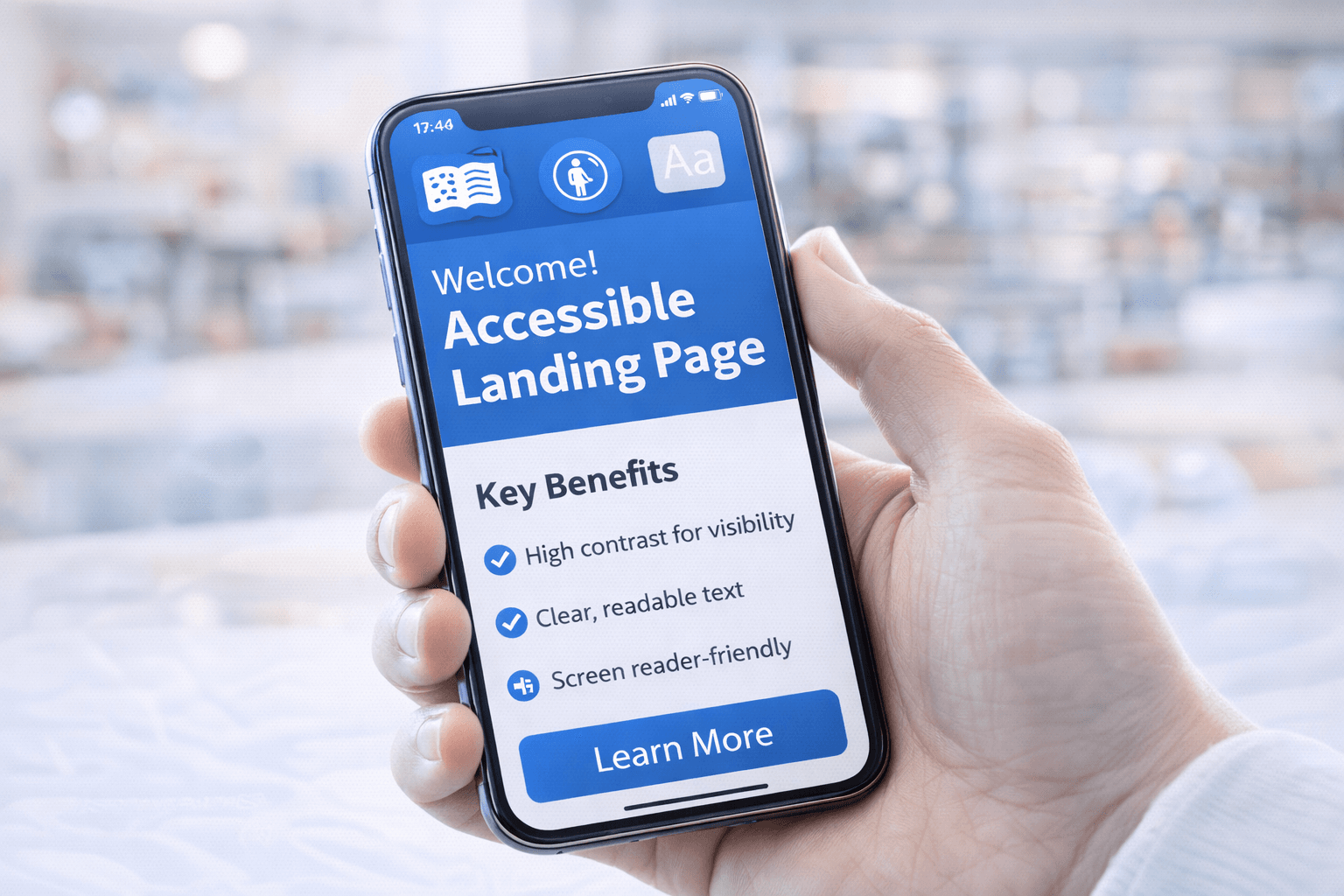
The QR code is just the start—destinations must be accessible too:
Web accessibility standards (WCAG 2.1): - Perceivable: Content available to all senses - Operable: Navigation works for all abilities - Understandable: Clear and consistent design - Robust: Works with assistive technologies
Mobile-specific considerations: - Large tap targets (minimum 44x44 pixels) - Readable font sizes (minimum 16px) - Sufficient spacing between elements - Support for screen readers - No horizontal scrolling required
Functionality: - Works with screen readers (VoiceOver, TalkBack) - Supports text resizing up to 200% - Doesn't require precise gestures - Provides alternatives to time-limited content - Includes alt text for all images
Testing: - Navigate with keyboard only - Test with screen reader - Verify at 200% zoom - Check with accessibility tools (aXe, WAVE)
Staff Training and Support
Human support bridges accessibility gaps:
Staff should know: - How to explain QR codes to unfamiliar users - How to assist with scanning difficulties - When to offer alternative access methods - How to provide information verbally
Assistance protocols: - Offer help proactively but not intrusively - "Would you like me to help with the QR code, or would you prefer I read you the information?" - Never assume what assistance someone needs - Respect privacy during assistance
Training topics: - Disability awareness and etiquette - QR code troubleshooting - Alternative access procedures - Communication techniques
Creating supportive environments: - Display "Ask for assistance" signage - Ensure staff are readily identifiable - Train all customer-facing staff - Provide feedback mechanisms
Important
Never make assumptions about what someone can or cannot do. Always offer assistance respectfully and let the person guide how they'd like to be helped.
Testing with Real Users
Actual user testing reveals true accessibility:
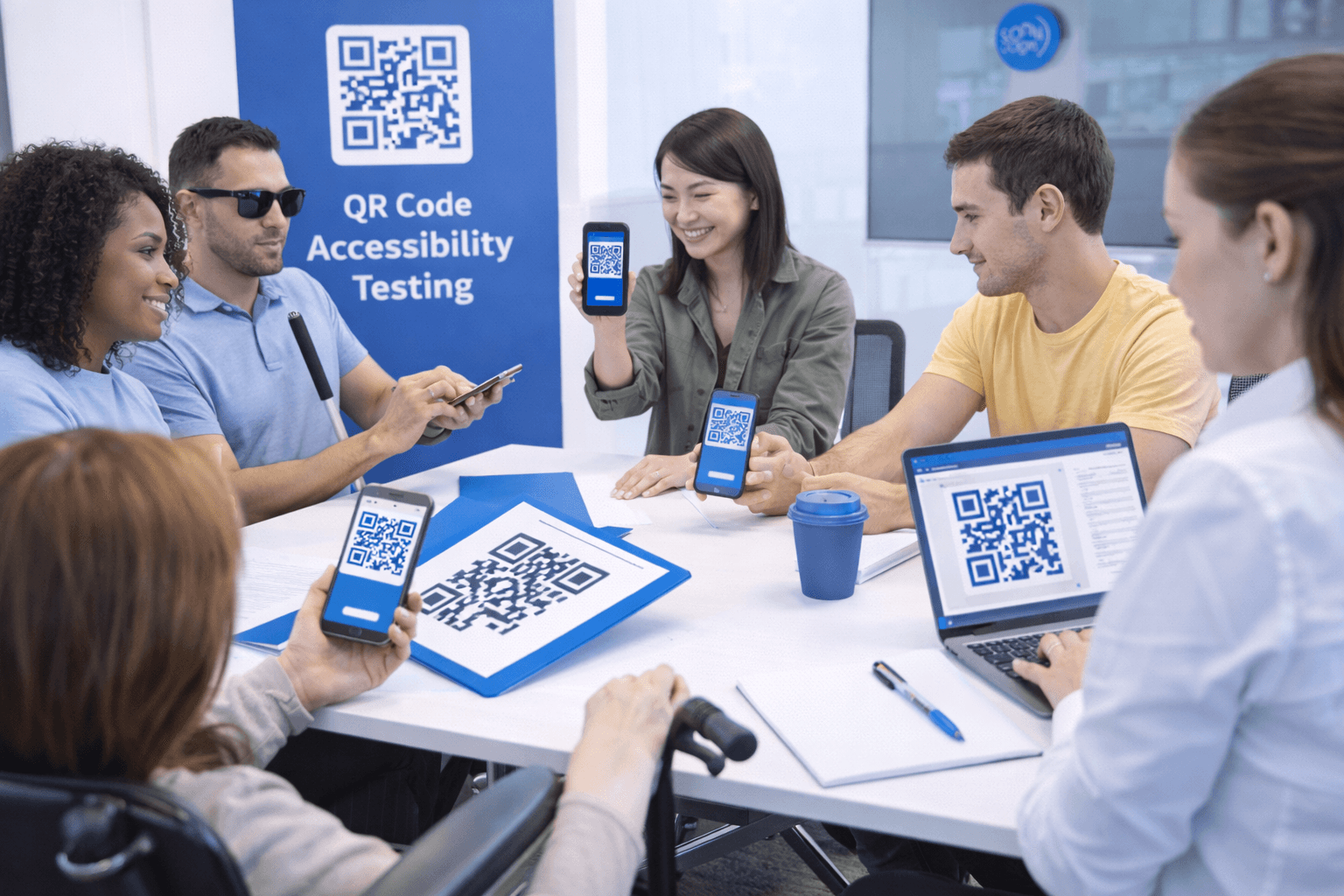
Testing participants should include: - People who are blind or have low vision - People with motor impairments - Older adults with varying tech familiarity - People using screen readers - People without smartphones
Testing scenarios: - Finding and locating the QR code - Scanning the code successfully - Navigating the destination content - Completing intended actions - Using alternative access methods
Feedback to gather: - What barriers were encountered? - What worked well? - What improvements would help? - Was assistance needed? Was it available?
Iteration cycle: 1. Create initial accessible design 2. Test with diverse users 3. Gather and analyze feedback 4. Implement improvements 5. Re-test with same user groups 6. Continue refining
Accessibility Checklist
Use this checklist for accessible QR implementations:
QR Code Design: - [ ] High contrast (4.5:1 minimum) - [ ] Sufficient size (4cm+ for public use) - [ ] Color blindness safe - [ ] Generous quiet zone - [ ] Tested with real scanning
Physical Implementation: - [ ] Accessible mounting height - [ ] Adequate lighting - [ ] Non-glare surface - [ ] Clear approach path - [ ] Nearby text instructions
Alternative Access: - [ ] Short URL provided - [ ] Phone/contact option available - [ ] Staff assistance offered - [ ] Key information in print
Destination Content: - [ ] WCAG 2.1 compliant - [ ] Screen reader compatible - [ ] Supports text resizing - [ ] Mobile-optimized - [ ] Large tap targets
Support Systems: - [ ] Staff trained on accessibility - [ ] Assistance clearly available - [ ] Feedback mechanism in place - [ ] Regular accessibility audits
Conclusion
Accessible QR codes aren't just about compliance—they're about ensuring everyone can participate equally. The changes required are often simple: better contrast, larger size, alternative access methods, and accessible destinations.
Start with the basics: high contrast, appropriate sizing, and always provide alternatives. Then expand to staff training, landing page accessibility, and user testing. Each improvement makes your QR codes work for more people.
When you design for accessibility, you often improve the experience for everyone. Larger codes are easier to scan in bright sunlight. Alternative access helps people with dead batteries. Clear instructions benefit the tech-unfamiliar. Accessibility is good design.
Ready to Create Your Own QR Codes?
Start creating dynamic QR codes for your business today. Track analytics, update content anytime, and never reprint again.
Related Articles
QR Code Size Guide: What Size Should Your QR Code Be for Printing?
Learn the exact minimum QR code sizes for business cards, posters, billboards, and product packaging. Includes a distance-to-size calculator and real-world examples.

15 Common QR Code Mistakes and How to Avoid Them
Learn from others' errors. Discover the most common QR code mistakes in design, placement, content, and tracking—and how to prevent them.
QR Codes: Print vs Digital Applications and Best Practices
Understand the differences between QR codes for print and digital media. Learn format requirements, use cases, and optimization strategies for each.