WiFi QR Codes: How to Share Your Network Password Instantly
Learn how to create WiFi QR codes for instant network access. Perfect for homes, offices, cafes, and hotels. Step-by-step instructions included.

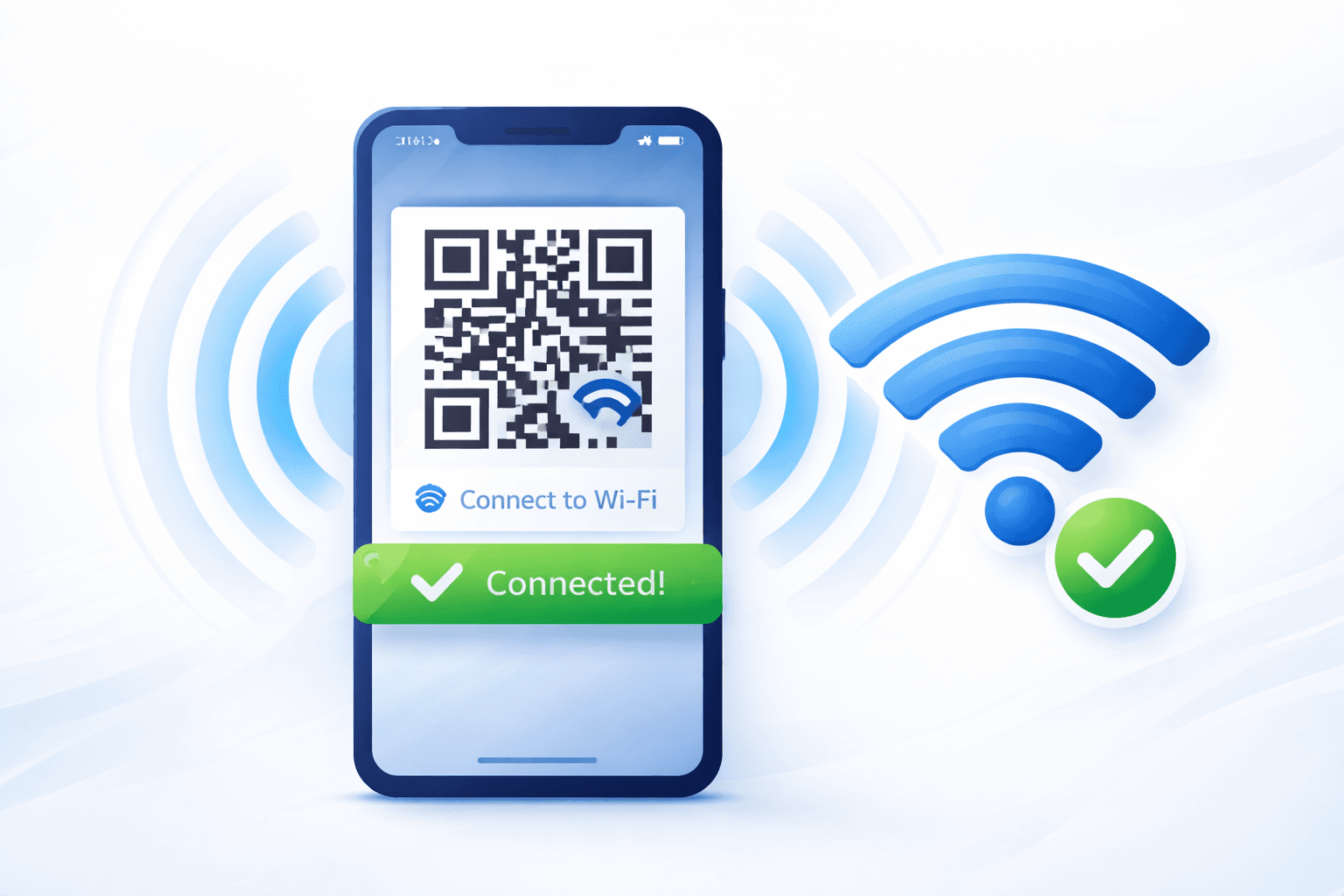
"What's your WiFi password?" is one of the most common questions hosts hear. Spelling out a complex password letter by letter is frustrating for everyone. WiFi QR codes solve this elegantly—guests scan, connect, and they're online in seconds.
This guide covers everything you need to create and deploy WiFi QR codes, whether for your home, business, or hospitality venue.
How WiFi QR Codes Work
A WiFi QR code encodes your network credentials in a standardized format that smartphones recognize automatically.
The encoded information: - Network name (SSID) - Password (if secured) - Security type (WPA/WPA2/WPA3, WEP, or open) - Hidden network flag (if applicable)
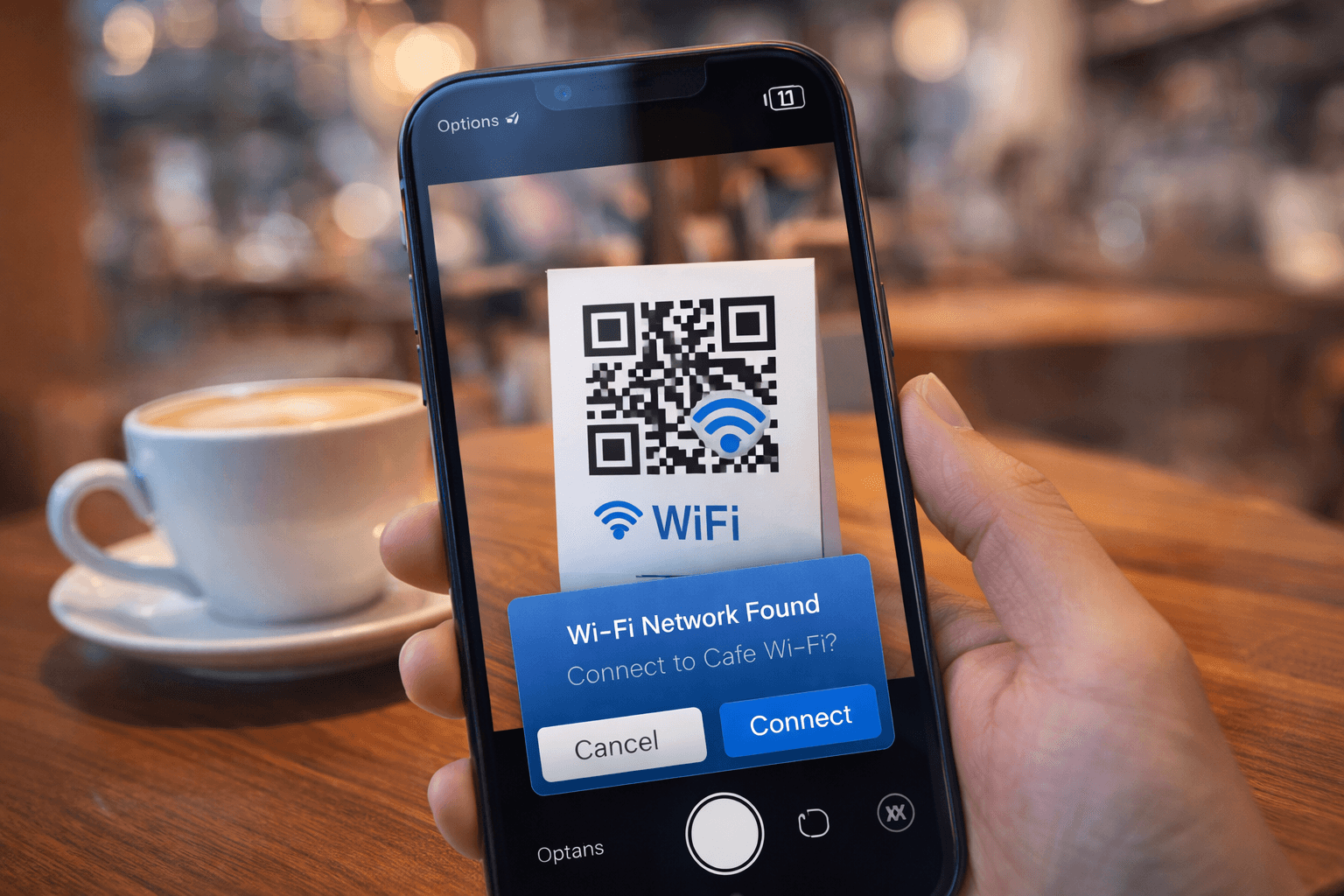
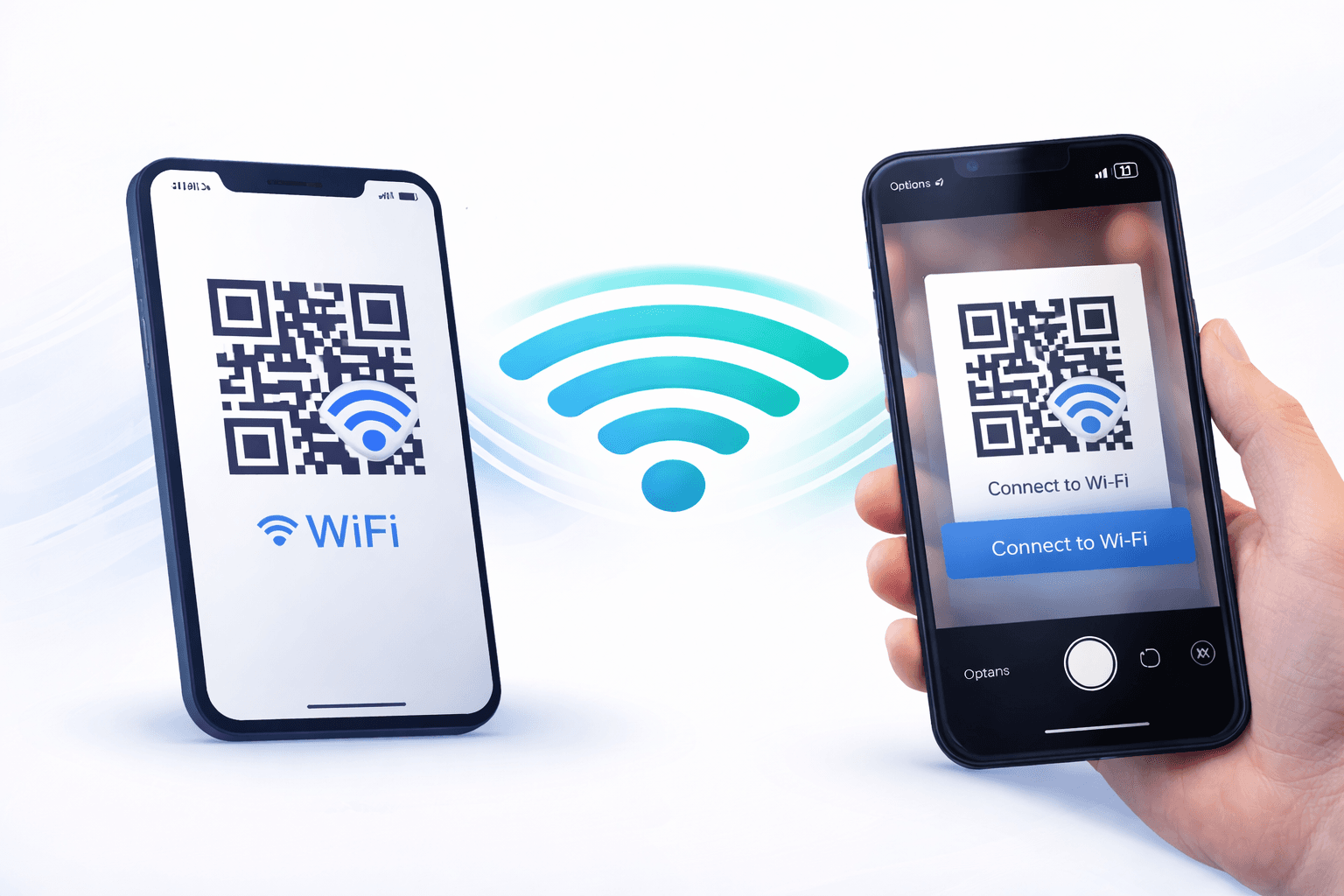
The scanning experience: 1. Guest opens camera app and points at QR code 2. Phone recognizes WiFi format and shows "Join network" prompt 3. Guest taps to confirm 4. Connection established automatically
No typing, no errors, no awkward spelling out of passwords. It works on both iOS and Android devices with native camera apps.
Creating Your WiFi QR Code
Follow these steps to create your code:
Step 1: Gather your network information Find your: - Network name (SSID): Exactly as it appears to devices - Password: Case-sensitive, exact characters - Security type: Usually WPA/WPA2 for modern networks
Step 2: Use a WiFi QR code generator Enter your network details into a trusted generator. Most QR code platforms have a specific WiFi option.
Step 3: Choose static or dynamic For WiFi codes, static is often acceptable since: - Credentials don't change frequently - Code works offline (important for visitors arriving without data) - No dependency on external services
However, dynamic is useful if: - You change passwords regularly - You want to track how many people connect - You might need to deactivate access
Step 4: Customize appearance (optional) Match colors to your home or business branding while maintaining scannability.
Step 5: Test before printing Scan the code with your own device. Verify it connects to the correct network.

Use Cases and Placement
Different settings call for different approaches:
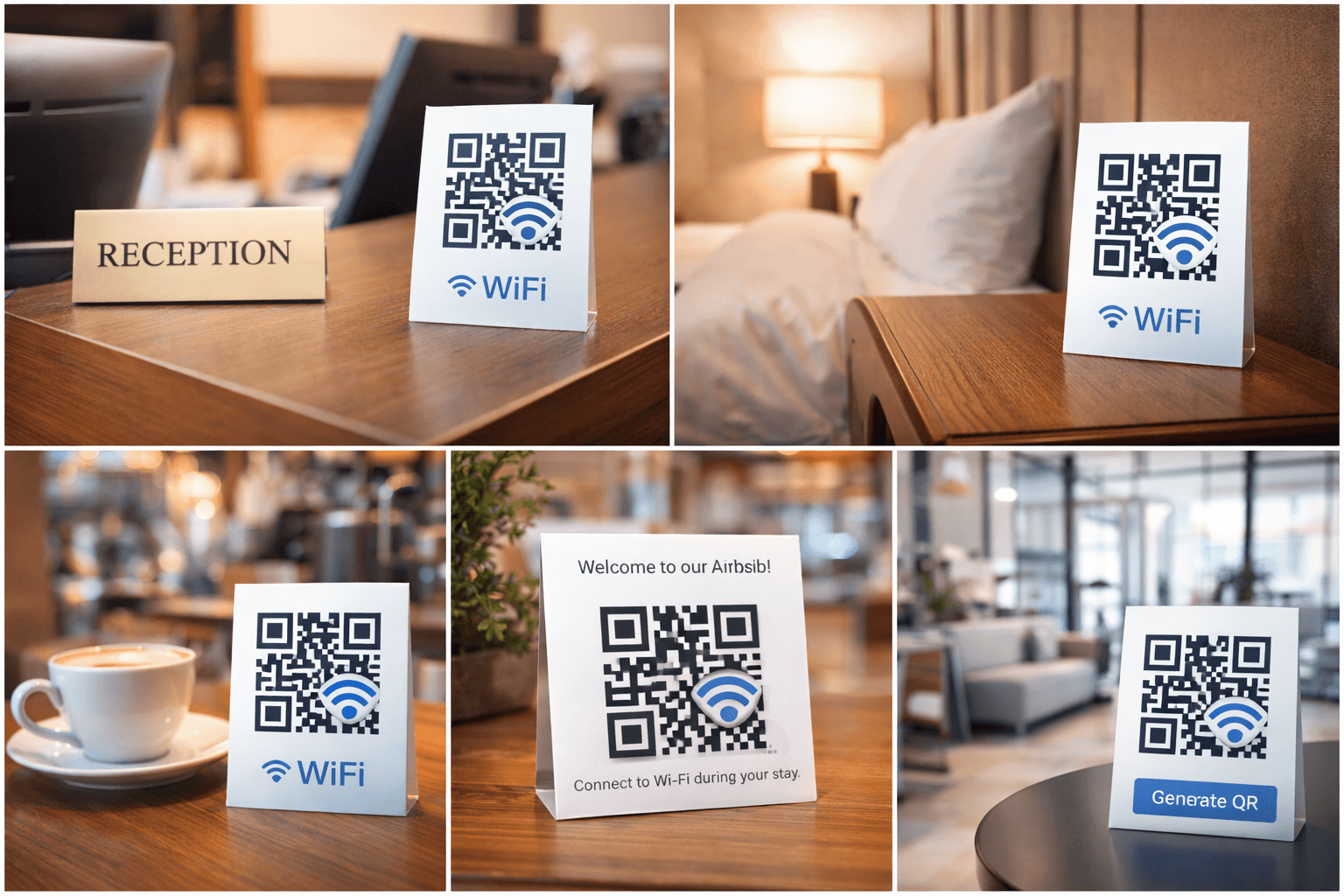
Home use: - Place near entry point or living room - Frame it decoratively to match your space - Include on guest room information card - Add to Airbnb welcome guide
Office/workplace: - Display in reception area - Include in new employee onboarding materials - Place in conference rooms - Add to visitor badges or packets
Retail/hospitality: - Position at checkout counter - Include on table tents (cafes, restaurants) - Add to hotel room key cards - Display in waiting areas
Events: - Include in event programs - Display on screens during registration - Print on name badges - Add to event signage
Pro Tip
Add clear instructions near your QR code: "Scan to connect to WiFi" helps those unfamiliar with the technology.
Security Considerations
WiFi QR codes require thoughtful security planning:
The password exposure issue: While guests don't see the password, it is encoded in the QR code. Someone with technical knowledge could decode it. For sensitive environments, consider:
Guest network approach (recommended): Create a separate guest network that: - Has its own password (which can be changed frequently) - Is isolated from your main network and devices - May have bandwidth limitations - Has no access to shared drives/printers
Rotating passwords: If security is paramount: - Change guest WiFi password weekly or monthly - Update QR codes accordingly (dynamic codes make this easy) - Inform guests of the schedule
Location security: - Don't place WiFi QR codes visible through windows - Position where only legitimate visitors can access - Consider removing codes during closed hours for businesses
Important
Never use a WiFi QR code for your primary network if you have IoT devices, smart home systems, or sensitive data. Always create a separate guest network.
Creating QR Codes from Your Phone
Both iOS and Android have built-in WiFi sharing features:
On iPhone (iOS 11+): 1. Go to Settings > WiFi 2. Tap the "i" icon next to your connected network 3. Tap "Share" or the QR code icon 4. Show the generated QR code to guests
On Android (varies by manufacturer): 1. Go to Settings > WiFi 2. Tap your connected network 3. Tap "Share" or "QR Code" 4. Display the code for scanning
Limitations of phone-generated codes: - Must have phone handy each time - Can't customize design - No analytics available - May share main network (not guest)
When to use a dedicated QR code instead: - Permanent displays in your space - Printed materials and signage - Guest network sharing (not main network) - Branded appearance needed - Analytics tracking desired
Troubleshooting Connection Issues
When guests have trouble connecting:
Code won't scan: - Ensure adequate size (at least 2cm x 2cm) - Check lighting conditions - Verify contrast is sufficient - Test with your own device
Scans but won't connect: - Verify network name is exactly correct (case-sensitive) - Confirm security type matches (WPA2 vs WPA3) - Check if network is within range - Ensure password hasn't changed since code creation - Test if network is functioning properly
Connects but no internet: - Check overall internet connection - Verify guest network has internet access - Check for captive portal requirements - Ensure device isn't blocked by MAC filtering
Device-specific issues: - Some older Android versions need QR scanner apps - Corporate devices may block network changes - VPN software can interfere with new connections
- Verify the QR code scans correctly
- Confirm network credentials match exactly
- Check security type configuration
- Test network connectivity independently
- Try with a different device
- Regenerate code if issues persist
Creative Presentation Ideas
Make your WiFi QR code part of your space:
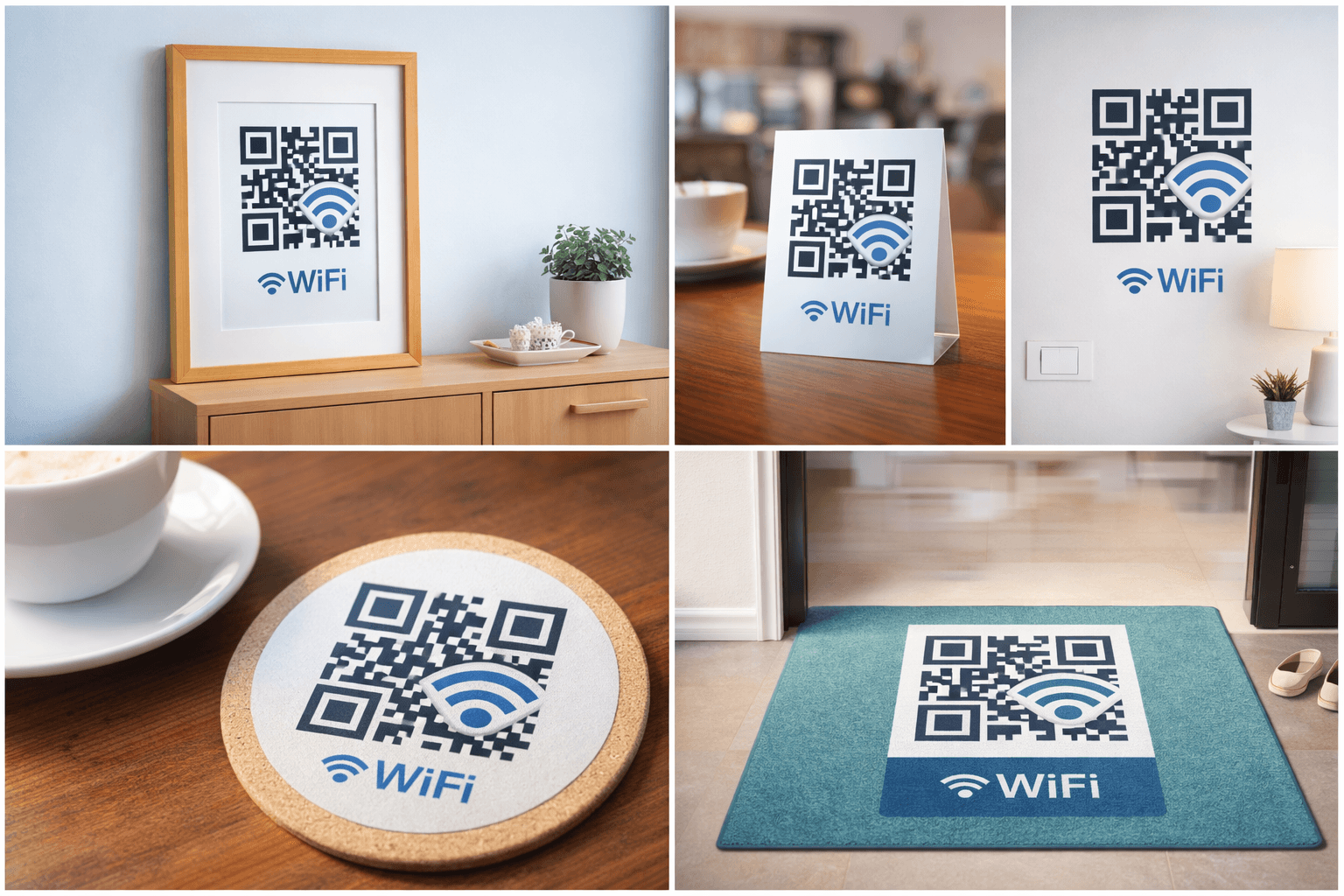
For homes: - Frame it as wall art with decorative design - Include on a welcome mat in guest room - Add to a hospitality basket with snacks - Create a magnetic fridge display
For businesses: - Incorporate into table-top displays - Add to menu or beverage list - Include on receipts - Create counter-top standees - Integrate into wall signage
For events: - Large format printing for easy scanning - Include on event app screenshots - Add to presentation slides - Print on attendee name badges
Design tips: - Match your interior or brand colors - Add "Free WiFi" text for clarity - Include simple scanning instructions - Consider multiple placements for convenience
Best Practices Summary
Follow these guidelines for success:
Do: - Use a dedicated guest network - Test thoroughly before deployment - Include clear instructions - Update codes when passwords change - Place in visible, accessible locations - Consider accessibility for different heights
Don't: - Share your main network via QR code - Place codes visible from outside - Forget to update after password changes - Make codes too small or low-contrast - Assume everyone knows how to scan QR codes - Neglect to test on both iOS and Android
Maintenance: - Periodically scan your own codes to verify function - Update when any network details change - Replace faded or damaged displays - Review security posture quarterly
Pro Tip
Create a calendar reminder to test your WiFi QR codes monthly. Network changes sometimes happen without updating the codes.
Conclusion
WiFi QR codes are a small touch that makes a big difference in hospitality. Whether at home or in business, they eliminate the friction of password sharing and show guests you've thought about their experience.
Set up a guest network, create your code, place it prominently, and enjoy never having to spell out your password again. Just remember to balance convenience with security—a dedicated guest network is always the smart approach.
Ready to Create Your Own QR Codes?
Start creating dynamic QR codes for your business today. Track analytics, update content anytime, and never reprint again.