QR Code Design Guide: Branding, Colors, and Customization
Master the art of QR code design. Learn to incorporate branding, choose colors effectively, add logos, and create scannable custom codes.

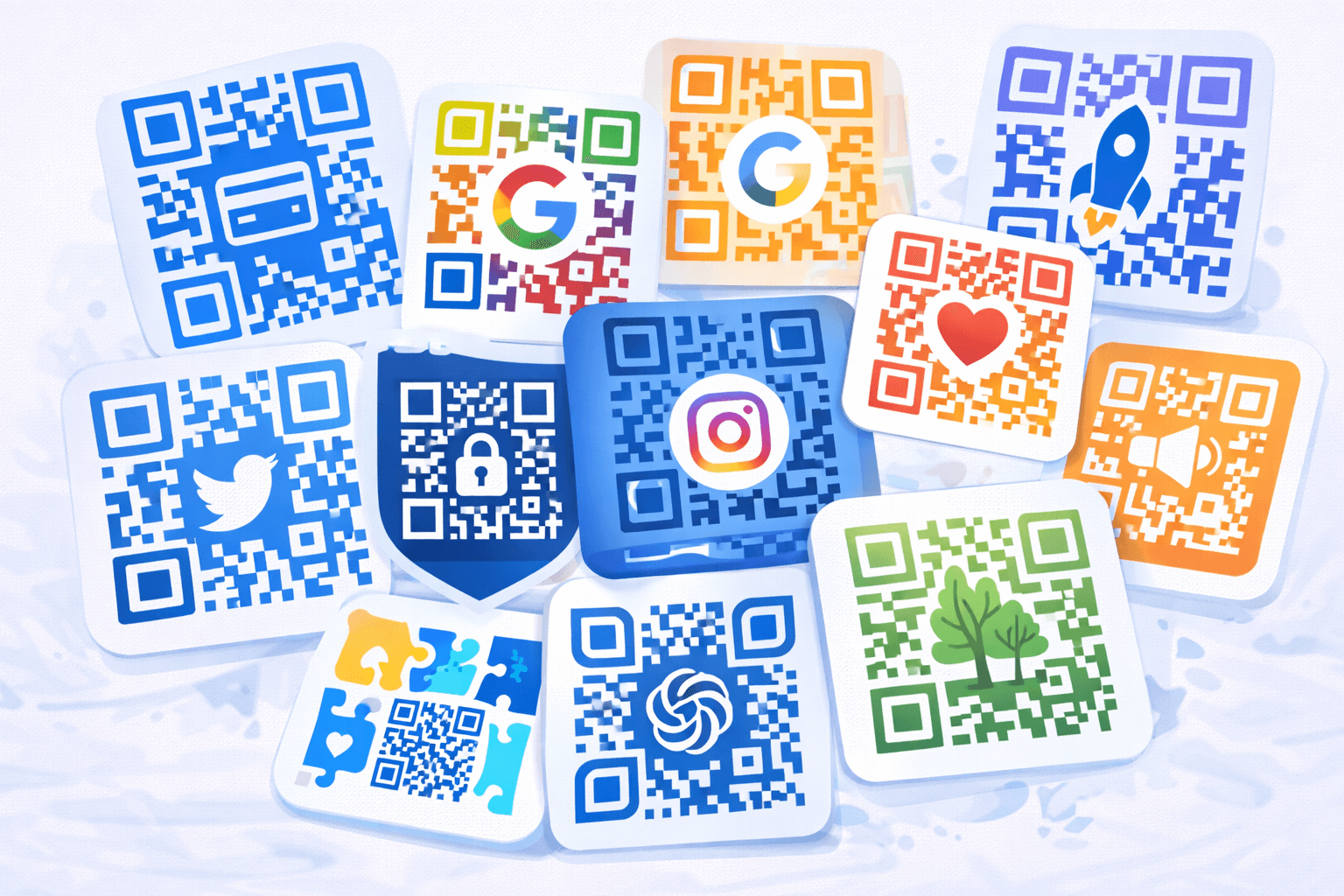
A plain black-and-white QR code works, but it's a missed branding opportunity. Custom QR codes attract more attention, reinforce brand identity, and can actually increase scan rates. However, poor design choices can make codes unscannable.
This guide teaches you to create beautiful, branded QR codes that work every time.
Understanding QR Code Structure
Before customizing, understand what you're working with:
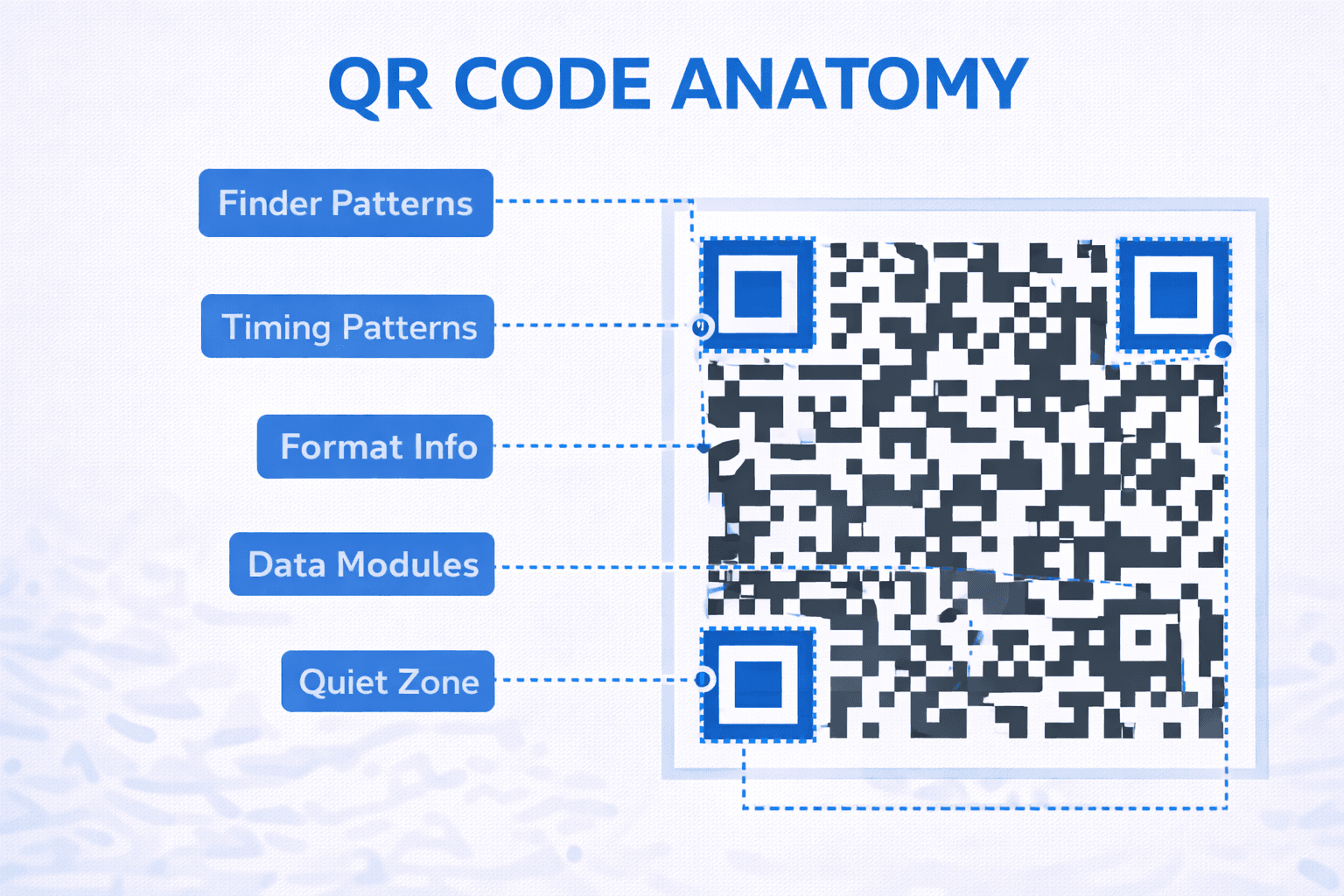
Essential elements (do not modify): - Finder patterns: The three large squares in corners that help scanners locate and orient the code - Alignment patterns: Smaller squares that help with scanning at angles - Timing patterns: Alternating modules between finder patterns - Format information: Encodes error correction level and mask pattern
Customizable elements: - Data modules: The remaining black and white squares - Quiet zone: The white border (can use different background colors) - Center area: Optimal location for logos (with error correction) - Colors: Of both data modules and background
Error correction levels: - L (7%): Smallest code, least customization room - M (15%): Good balance for most uses - Q (25%): Room for minor damage or obstruction - H (30%): Best for logo placement, largest code
Color Theory for QR Codes
Color choices affect both aesthetics and function:
The cardinal rule: Dark foreground on light background. Scanners look for dark modules against light backgrounds. Inverting this (light on dark) can work on some devices but fails on others.
Contrast requirements: - Minimum 4:1 contrast ratio between foreground and background - Higher contrast = more reliable scanning - Test in various lighting conditions
Brand color application: - Use your brand's darkest color for modules - Use lightest/white for background - Accent colors can appear in quiet zone or surrounding design - Never use brand colors if they don't provide sufficient contrast
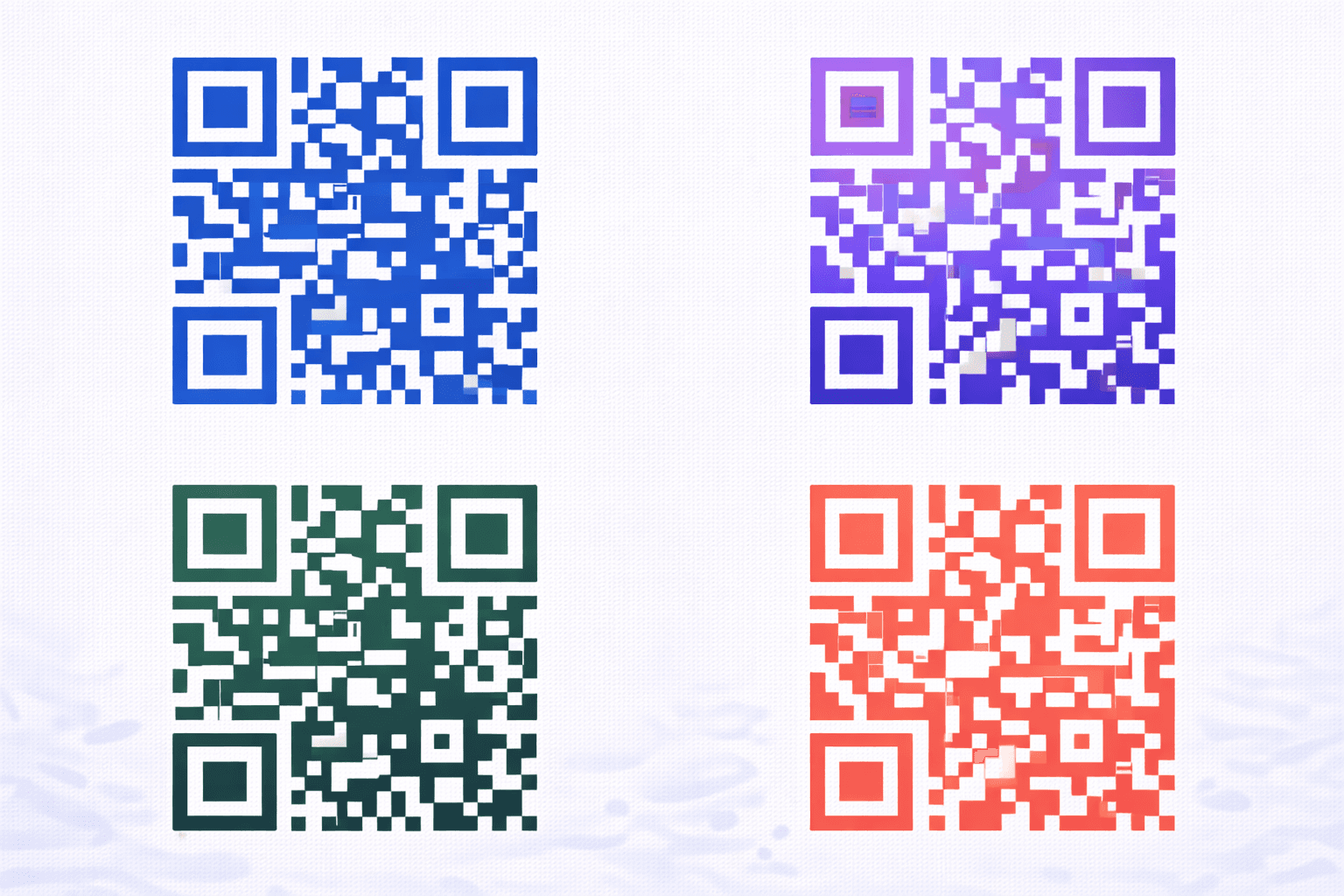
What works: - Navy blue on white - Dark green on cream - Deep purple on light gray - Black with colored accents nearby
What doesn't work: - Yellow on white (insufficient contrast) - Light blue on light gray (too similar) - Red on green (color blindness issues) - Gradients across modules (confuses scanners)
Important
Some scanners struggle with inverted codes (light modules on dark background). If you must use this approach, test extensively across many devices.
Adding Logos Effectively
Logo placement is the most popular customization:
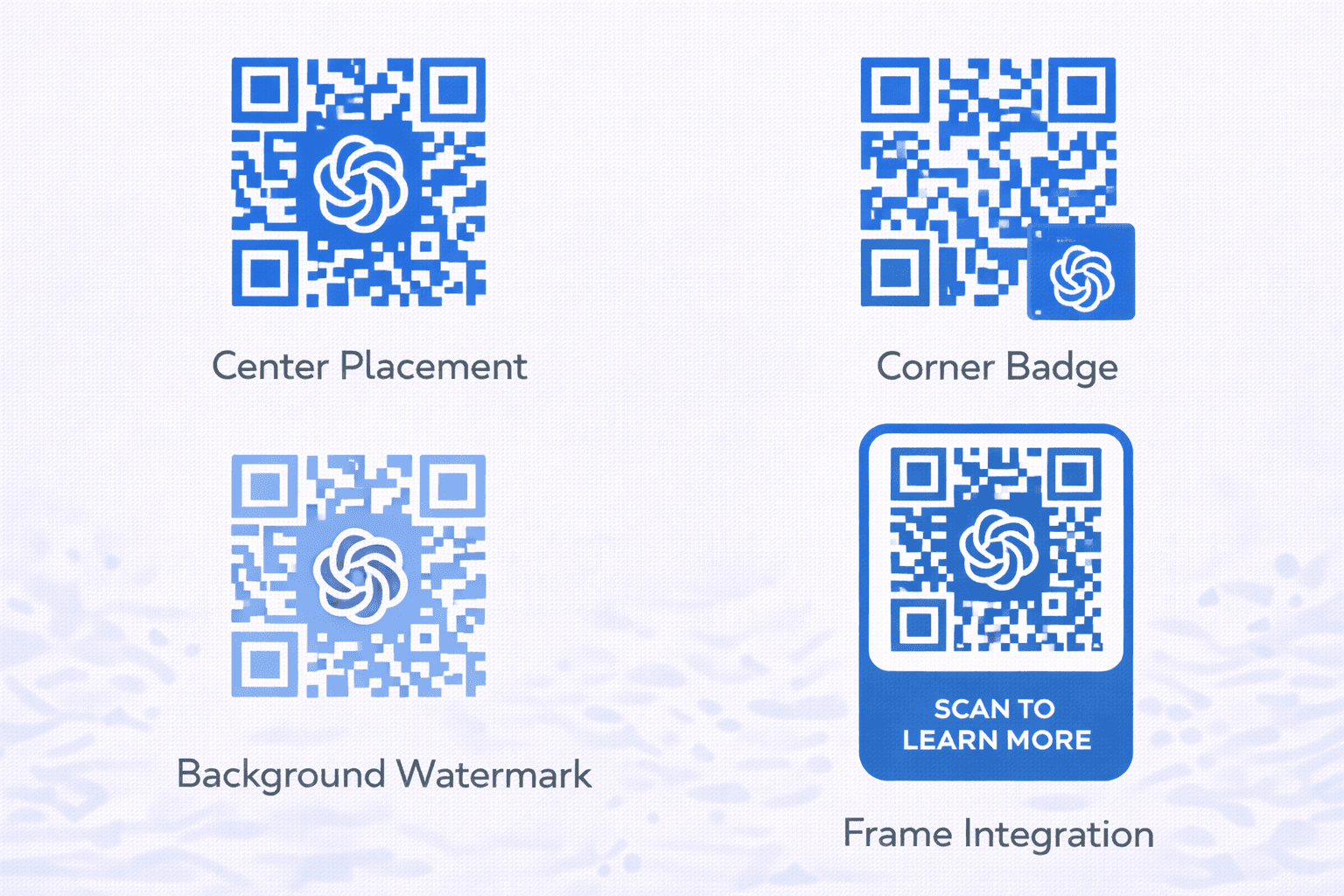
Where to place logos: - Center of the QR code - QR codes are read from outside edges, so center is safest to obstruct - Use Level H error correction to allow up to 30% obstruction
Size guidelines: - Logo should cover no more than 20-25% of code area (for safety margin) - Square or circular logos work best - Include a small white/light buffer around the logo
Logo preparation: - Simplify complex logos - High contrast version may work better - Consider a single-color variant - Ensure logo remains recognizable at small sizes
Execution: 1. Generate QR code with Level H error correction 2. Export at high resolution 3. Place logo in exact center 4. Add subtle background shape behind logo if needed 5. Test thoroughly on multiple devices
Pro Tip
Always test QR codes with logos on at least 5 different devices before finalizing. Edge cases in scanner capability can cause unexpected failures.
Module Shape Customization
The squares themselves can be customized:
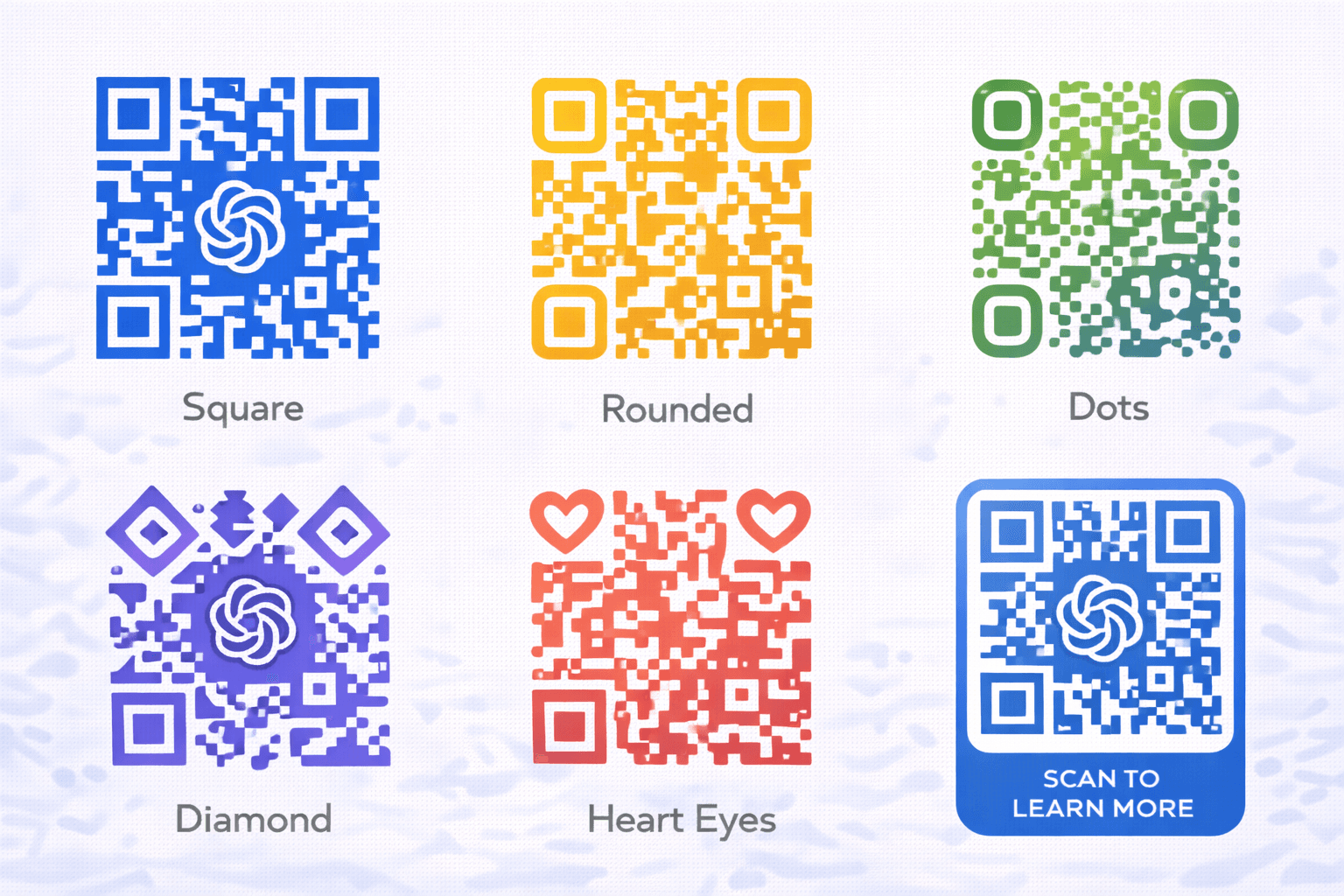
Shape options: - Standard squares (default, most reliable) - Rounded squares (softer appearance) - Circles/dots (modern look) - Custom shapes (branded patterns)
Safety considerations: - Keep shapes filled (no outlines only) - Maintain consistent sizing - Don't vary shapes randomly within code - Finder patterns should stay square for reliability
Creative approaches: - Round modules with square finder patterns - Gradient fills (if contrast maintained) - Textured fills (subtle patterns work) - Connecting modules (with caution)
Testing importance: Custom shapes are where many designs fail. What looks great on screen may not scan reliably. Test, test, test.
Frame and Context Design
The area around the QR code matters too:
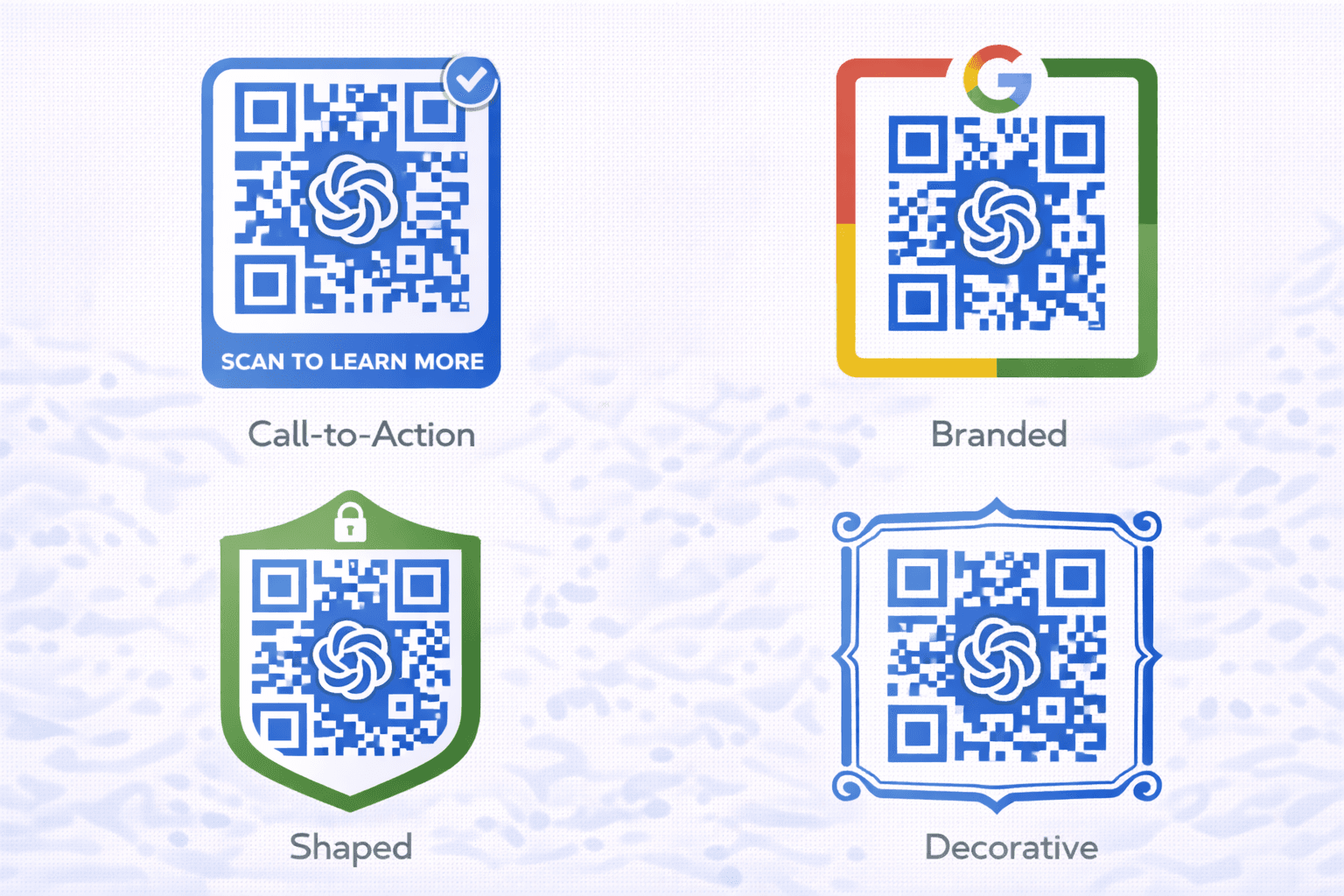
Call-to-action text: - "Scan for menu" - "Scan to save 20%" - "Scan to connect" - Action-oriented language increases scan rates by up to 40%
Frame designs: - Decorative borders that don't intrude on quiet zone - Shaped frames (phone outline, app icon shape) - Brand-consistent decorative elements - Social media style frames
Integration with broader design: - QR code as part of larger graphic composition - Flowing from or into other design elements - Complementary to overall visual style - Balance between visibility and integration
Best practices: - CTA should be clearly associated with QR code - Keep quiet zone intact (white space around code) - Ensure QR code stands out from background - Don't let decorative elements obscure the code
Common Design Mistakes
Learn from others' errors:
Mistake 1: Insufficient contrast Beautiful design, but scanner can't detect modules. Always prioritize contrast.
Mistake 2: Disturbing finder patterns Customizing the three corner squares breaks scanning. Keep these standard.
Mistake 3: Oversized logo Logo covers too much data. When error correction can't compensate, code fails.
Mistake 4: Random module colors Each module a different color creates visual chaos and scanning issues.
Mistake 5: Missing quiet zone Design elements too close to code edge. Maintain clear border.
Mistake 6: Complex gradients Gradients that vary module darkness confuse scanners.
Mistake 7: Transparency misuse Semi-transparent codes over complex backgrounds are unreliable.
Mistake 8: Print resolution failure Design looks great digitally but prints blurry. Use vector formats, test prints.
- Always maintain minimum contrast ratio
- Never modify finder pattern squares
- Keep logos under 25% of code area
- Test on multiple devices before finalizing
- Use vector formats for printing
- Maintain the quiet zone around the code
Tools and Workflow
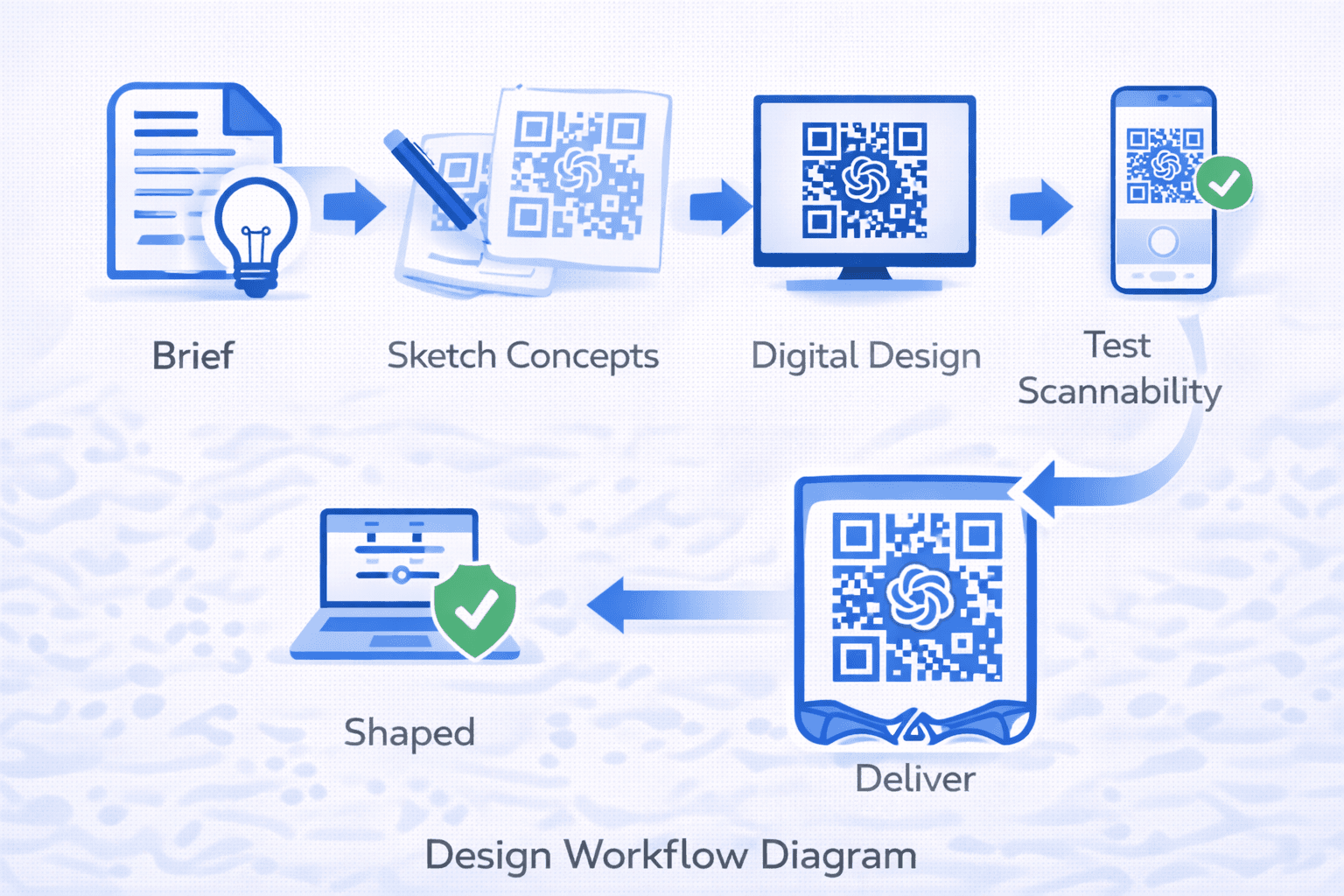
Professional QR code design workflow:
QR code generators with design features: - Choose platforms offering customization options - Look for: color control, logo upload, shape options - Ensure export in high-resolution/vector formats - Verify dynamic code capability if needed
Post-generation editing: Some designers prefer to generate basic codes and customize in: - Adobe Illustrator (vector editing) - Figma or Sketch (UI design) - Photoshop (raster editing—use with caution)
Best workflow: 1. Generate with Level H error correction 2. Export as SVG (vector) 3. Customize in design software 4. Test scannability 5. Export in appropriate format for use 6. Test again after format conversion
File formats: - SVG: Best for design software and scalability - PDF: Universal, maintains vector quality - PNG: For digital use, export at 300+ DPI - Print: Use vector formats, minimum 300 DPI if raster
Industry-Specific Design Tips
Tailor designs to your context:
Retail/Fashion: - Elegant, minimalist codes - Brand color integration - Premium material printing (foil, emboss) - Fashion-forward frame designs
Food/Restaurant: - Clean, appetizing color palettes - Integration with menu design - Durable printing for table use - Clear instructional text for all ages
Technology: - Modern, geometric customization - Minimal design aesthetic - Digital-first optimization - Interactive-feeling elements
Healthcare: - Trust-building, professional appearance - High contrast for accessibility - Clear labeling and instructions - HIPAA-compliant destination pages
Entertainment: - Bold, attention-grabbing designs - Character or imagery integration - Event-themed customization - Shareable aesthetic for social media

Conclusion
QR code design is the intersection of creativity and technical constraint. The best designs are visually distinctive, brand-aligned, and—critically—reliably scannable.
Start conservative: use high error correction, maintain strong contrast, and test thoroughly. As you gain confidence, explore more adventurous customization while always prioritizing function over form.
Remember: a beautiful QR code that doesn't scan is worse than an ugly one that does. Test on real devices, in real conditions, with real users. Then iterate based on what you learn.
Ready to Create Your Own QR Codes?
Start creating dynamic QR codes for your business today. Track analytics, update content anytime, and never reprint again.